 Rui Carmo
This one took me a while (for all the reasons you’ll be able to read elsewhere in recent posts), but the NestDisk has been quietly running beside my desktop for a month now, and it’s about time I do it justice.
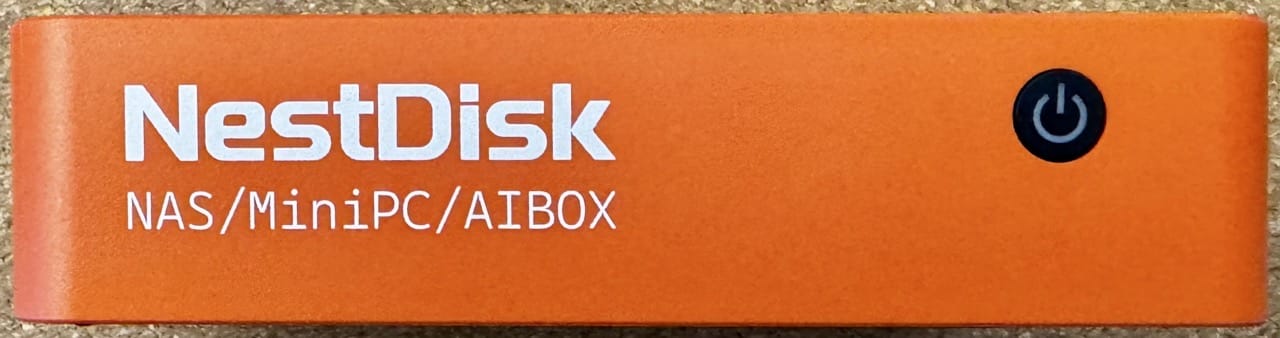
This is a tiny Intel machine whose entire reason for existing is to let me cram four M.2 2280 SSDs behind dual 2.5GbE and end up with a small, fast, “boring” NAS that, like most mini PCs these days, can also double as a router and even an “AI box”, but the key point is that it’s designed around storage density and decent networking in a very small form factor.
Disclaimer: YouYeeToo sent me the NestDisk free of charge (for which I thank them), and as usual this article follows my review policy.
Like most of the devices I reviewed during 2025, the NestDisk is built around Intel’s N150, which is pretty much perfect for this category—low power (around 12W), modest clock speeds (1.6GHz up to 3.6GHz), and usually more than enough for file serving and a few services. The catch, as always with this kind of machine, is… thermals.
The short version is that if you already want an SSD-only NAS and have (or plan to have) 2.5GbE, this can make a lot of sense—provided it stays cool and stable once you actually populate all four slots.
Hardware
Even for an N150 machine, this is a pretty small box: 146×97.5×35mm, which is roughly the size of the external HDD enclosures I used to get a few years ago.
Design and Build Quality
I have to say that I very much like the color. I’m not usually a fan of bright colors on tech gear, but since most of the stuff on my desk is black, white or various shades of brown, the NestDisk stands out in a good way:
In The Box
Besides the NestDisk itself, I also got an unusual accessory: a dual-fan USB cooler with quite nice-looking 120mm fans, which is meant to sit underneath the NestDisk and blow air over the M.2 area. I found this especially amusing for two reasons: first, because it’s much bigger than the NestDisk itself; and second, because I’ve actually been building a similar DIY cooling solution for my own use with a cheap fan controller and two 90mm fans:
So I can see the rationale here, although it did make me wonder how cool the machine ran. The case does have two rubber feet on the bottom that ensure it has an airgap on a desk, but removing the heatsink was actually quite revealing:
First of all the thing is thick. It’s almost 7mm of solid metal, and probably the most substantial part of the entire enclosure. Second, YouYeeToo clearly didn’t skimp on expectations: they added all four thermal pads for the M.2 slot (unlike other manufacturers that only add one or two).
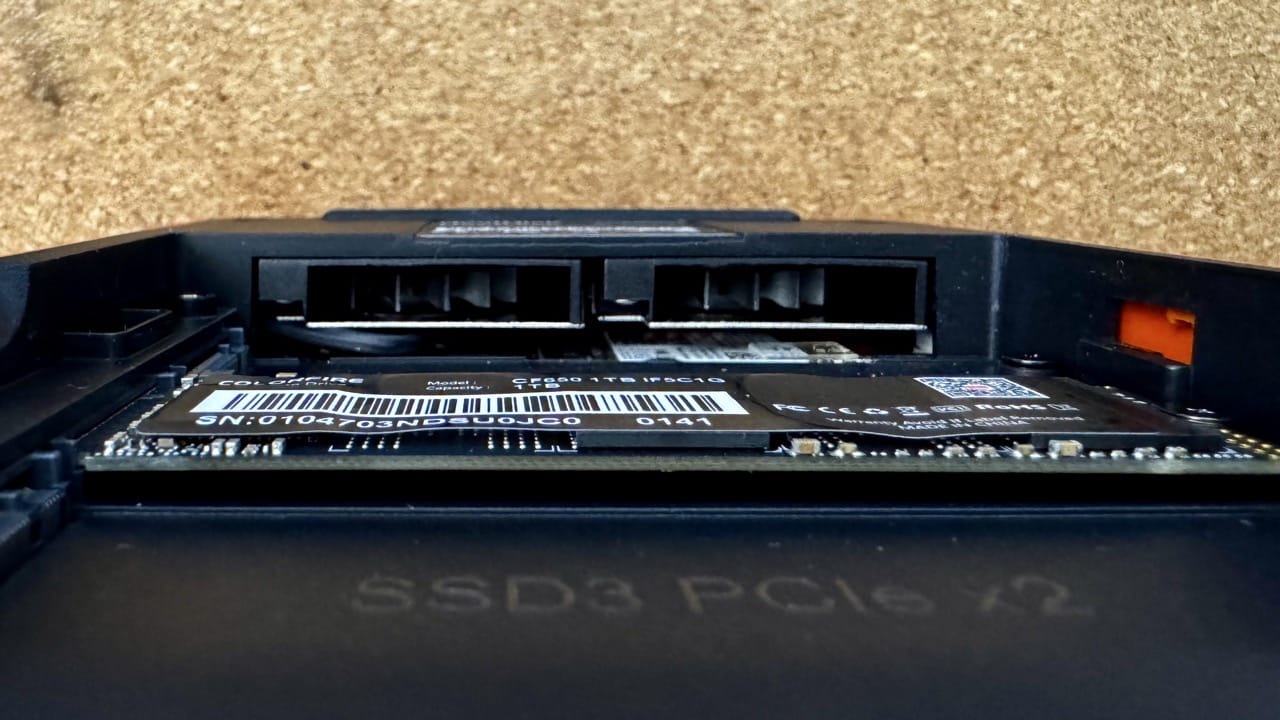
And, looking inside the SSD cavity (which, by the way, already came with a 1TB SSD on the second slot), I noticed there are two very small (40mm) fans that seem to blow air into the M.2 cavity.
This is interesting given that they seem to bring in air from the same side as the USB-A ports, although I have to question how effective they might be to cool all the SSDs.
Incidentally, the CPU seems to have its own cooling path and I believe there is a third fan that takes advantage of the case grilles to exhaust warm air out the other side and top.
But other than the (tragically ill-fated) iKOOLCore R2Max, this is the most substantial heatsink I’ve seen in a mini PC of this size.
Side Note: refreshingly, you can apparently disassemble the whole thing without removing any of the rubber feet, but I didn’t test that for two reasons: first, because the plastic enclosure is very tightly fitted, with the ports flush with the outside (and thus holding the enclosure in place); and second, because I didn’t want to risk damaging the device before I even got to the “fun” parts.
Specs
The specs themselves are fairly straightforward:
- Intel N150 CPU (4 cores / 4 threads; 1.6GHz base, up to 3.6GHz turbo)
- 12GB LPDDR5 (soldered, not upgradeable, a very common N150 configuration)
- Dual 2.5GbE Intel i226‑V network interfaces (also a common N150 reference design feature)
- Wi-Fi 6 + Bluetooth 5.2
- 64GB eMMC boot device (preloaded with OpenMediaVault)
- Four M.2 2280 slots (PCIe 3.0 x2 per slot for NVMe; one slot also supports M.2 SATA)
- Dual HDMI outputs + a 3.5mm audio jack
- Three USB-A ports + one USB-C data port + one USB-C power port (not PD, apparently 19V/3.42A only)
The USB-C data port should support DisplayPort alt-mode, which means you can theoretically run three displays at once (2× HDMI + 1× USB-C DP), but I didn’t test that given that this is supposed to be a NAS.
Storage Layout
The NestDisk boots off the internal 64GB eMMC, which is plenty for OpenMediaVault and some plugins, and after setting it up (more on that later), here’s what the storage layout looks like:
Disk /dev/mmcblk0: 58.25 GiB, 62545461248 bytes, 122159104 sectors
Units: sectors of 1 * 512 = 512 bytes
Sector size (logical/physical): 512 bytes / 512 bytes
I/O size (minimum/optimal): 512 bytes / 512 bytes
Disklabel type: gpt
Disk identifier: CB0357AA-AB03-4851-8579-C52186DC58AD

Device             Start       End   Sectors  Size Type
/dev/mmcblk0p1      2048   1050623   1048576  512M EFI System
/dev/mmcblk0p2   1050624 120158207 119107584 56.8G Linux filesystem
/dev/mmcblk0p3 120158208 122157055   1998848  976M Linux swap

root@admin:~# lsblk
NAME         MAJ:MIN RM   SIZE RO TYPE MOUNTPOINTS
sda            8:0    1  21.2G  0 disk
mmcblk0      179:0    0  58.3G  0 disk
|-mmcblk0p1  179:1    0   512M  0 part /boot/efi
|-mmcblk0p2  179:2    0  56.8G  0 part /
`-mmcblk0p3  179:3    0   976M  0 part [SWAP]
nvme0n1      259:0    0 953.9G  0 disk
mmcblk0boot0 179:256  0     4M  1 disk
mmcblk0boot1 179:512  0     4M  1 disk
M.2 slots and PCIe lane budgeting
The thing about building NAS devices with an N150 is that even though you get four M.2 2280 slots, they’re not necessarily full‑fat x4 per slot—from the specs and a little close inspection, the machine actually uses PCIe 2.0 switches to multiplex the available lanes, so this isn’t exactly a straightforward x4/x4/x4/x4 layout.
Here’s the full PCI layout for reference:
root@admin:~# lspci
00:00.0 Host bridge: Intel Corporation Alder Lake-N Processor Host Bridge/DRAM Registers
00:02.0 VGA compatible controller: Intel Corporation Alder Lake-N [Intel Graphics]
00:0a.0 Signal processing controller: Intel Corporation Platform Monitoring Technology (rev 01)
00:0d.0 USB controller: Intel Corporation Alder Lake-N Thunderbolt 4 USB Controller
00:14.0 USB controller: Intel Corporation Alder Lake-N PCH USB 3.2 xHCI Host Controller
00:14.2 RAM memory: Intel Corporation Alder Lake-N PCH Shared SRAM
00:14.3 Network controller: Intel Corporation CNVi: Wi-Fi
00:15.0 Serial bus controller: Intel Corporation Device 54e8
00:15.1 Serial bus controller: Intel Corporation Device 54e9
00:16.0 Communication controller: Intel Corporation Alder Lake-N PCH HECI Controller
00:1a.0 SD Host controller: Intel Corporation Device 54c4
00:1c.0 PCI bridge: Intel Corporation Alder Lake-N PCI Express Root Port
00:1c.6 PCI bridge: Intel Corporation Alder Lake-N PCI Express Root Port
00:1f.0 ISA bridge: Intel Corporation Alder Lake-N PCH eSPI Controller
00:1f.3 Audio device: Intel Corporation Alder Lake-N PCH High Definition Audio Controller
00:1f.4 SMBus: Intel Corporation Alder Lake-N SMBus
00:1f.5 Serial bus controller: Intel Corporation Alder Lake-N SPI (flash) Controller
01:00.0 Non-Volatile memory controller: Realtek Semiconductor Co., Ltd. RTS5765DL NVMe SSD Controller (DRAM-less) (rev 01)
02:00.0 PCI bridge: ASMedia Technology Inc. ASM1182e 2-Port PCIe x1 Gen2 Packet Switch
03:03.0 PCI bridge: ASMedia Technology Inc. ASM1182e 2-Port PCIe x1 Gen2 Packet Switch
03:07.0 PCI bridge: ASMedia Technology Inc. ASM1182e 2-Port PCIe x1 Gen2 Packet Switch
04:00.0 Ethernet controller: Intel Corporation Ethernet Controller I226-V (rev 04)
05:00.0 Ethernet controller: Intel Corporation Ethernet Controller I226-V (rev 04)
Either way, the important part is that the bandwidth seems to be plenty for most consumer SSDs, even when used four at a time. I wanted to test this, but since most of my test SSDs died inside a similar ARM box, I couldn’t really do any significant performance testing.
Power
The USB-C power input is an interesting choice. The YouYeeToo Wiki lists it 19V/3.42A, which is refreshingly specific, and it should support Power Delivery negotiation, but my policy with USB-C power inputs is still to always use the power brick that came with the device, so I didn’t try any alternatives.
What I can say is that the power envelope is pretty much N150 standard: 11W idle, up to around 25W under load, can be pushed a little higher if you really tax the CPU. That’s pretty good for a personal NAS.
Fan noise
The NestDisk is not fanless, but I never heard the fan until I load tested it, and I would classify it as “quietly insistent”. I don’t know the size of the CPU fan, but I know for a fact that the kind of 40mm internal fans I spotted near the NVMe cavity can definitely be audible in a quiet room, but in this case I seldom heard them.
But I did do one thing that most people probably wouldn’t: I set the machine up vertically, with the USB ports down, but held by a 3D-printed bracket similar to this one:
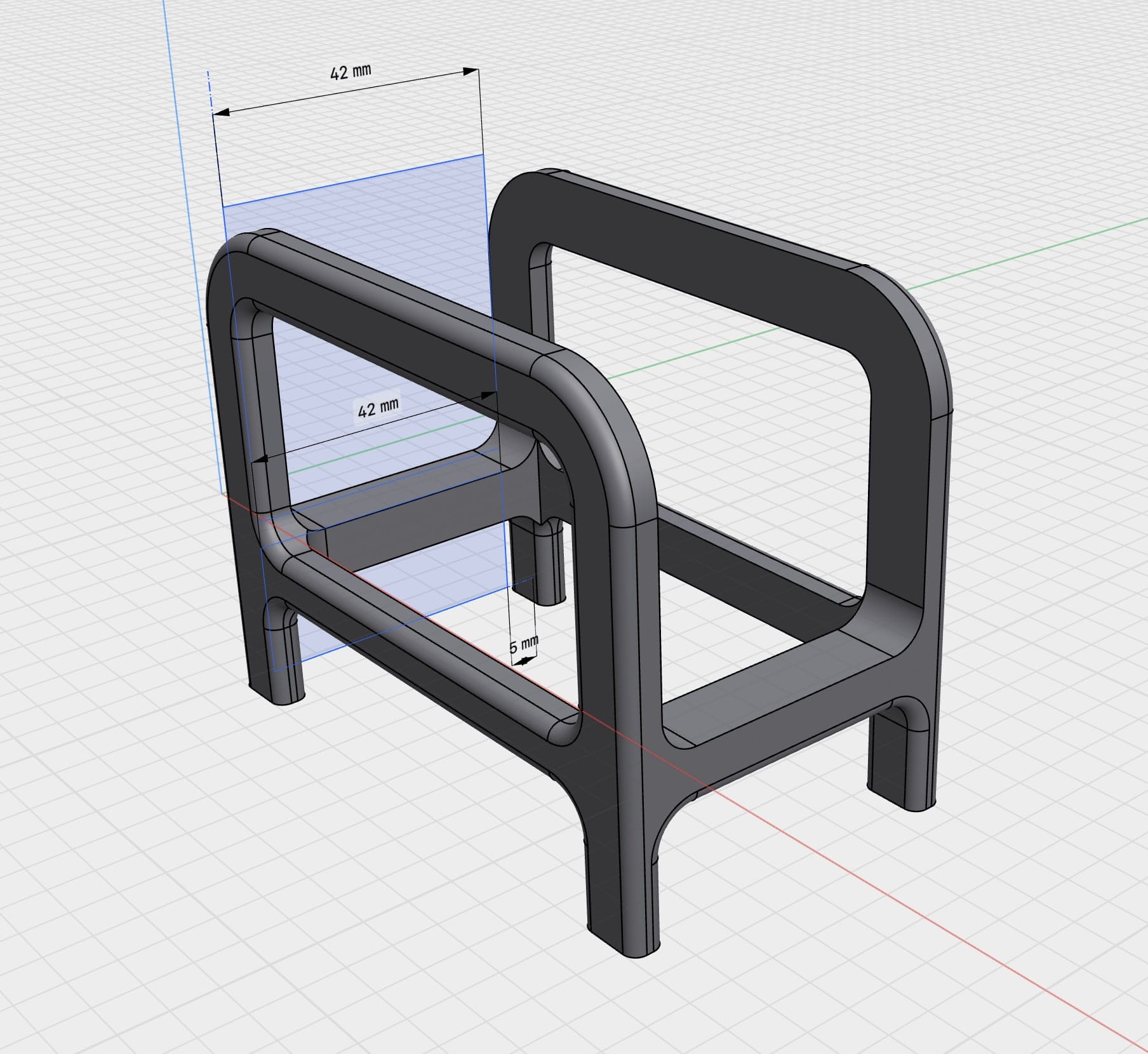
I broke it by accident the day before I was finalizing this draft (I dropped the bracket on the floor when re-arranging my desk), but while it lasted it held the NestDisk firmly in place, and more importantly it oriented the case grilles in a way that allowed better airflow.
Thermals
Which leads me to some of my testing. I got a fancy new IR thermometer for Christmas, so I was able to keep tabs on the NestDisk throughout, and the M.2 heatsink averaged 45°C, with everything else between 27°C under normal use. But it’s been quite a cold winter here (10°C outside average) and I don’t warm up the office much (it’s 20°C now), so these numbers might be a bit optimistic.
BIOS
The BIOS itself is fairly standard for an N150 machine, with the usual assortment of power management, boot order, and device configuration options. There are a few interesting bits, though:
Software
The NestDisk comes preinstalled with OpenMediaVault, although you’ll have to be a little patient with it if you’re new to OMV. First off, there’s no initial setup wizard (or anything in the console, really), so you’ll have to boot the machine, note the IP address, and then log in with the default admin:openmediavault credentials.
OpenMediaVault Itself
Even though I am not a fan of OpenMediaVault’s quirky Amiga-era inside jokes (like fake error messages and Amiga cursors, which many newcomers find confusing), I can’t argue that it works perfectly for the NestDisk—it’s small enough to run off the internal eMMC and have plenty of room to spare for plugins, and it makes it trivial to do exactly what I want for this kind of device: get it on the network quickly, create shares, and move on with my life:
What makes OMV a nicer consumer choice than a plain Debian install is that it gives me the things most people actually need—SMB/CIFS sharing, NFS if I want it, users/groups, permissions, monitoring, scheduled jobs and notifications—without requiring anyone to remember which config file does what.
OMV’s idea of a NAS is pleasantly conservative, and that’s great, and if I want to go beyond the core experience, OMV-Extras is the usual next step: it adds a much wider selection of third‑party plugins that can turn this from a simple NAS into a small server that happens to have a nice storage UI, which is exactly what I did with it over the past month: It sat on my desk running a small docker compose stack with the services I’ve been developing, and it did great.
A few caveats apply, though, besides the quirky interface: the OMV version that comes preinstalled tries to upgrade upon first boot and mine got a little confused, so it took a bit to get going. And you’ll probably want to set up ZFS if you use more NVMEs, since OMV still seems to default to EXT4 for new filesystems.
Performance
I saw no real difference from any of my other N150 reviews, which is to say that it performed exactly as expected for this class of device: plenty fast for SMB/CIFS file sharing, more than enough network throughput to saturate one 2.5GbE link, and more than enough CPU power to run a few containers without breaking a sweat.
What I did notice is that the thermals were better than I expected—I had some trouble getting the CPU to get past 60°C even under load, which is impressive for such a small box, and the idle temperatures were very reasonable:
# sensors
iwlwifi_1-virtual-0
Adapter: Virtual device
temp1:            N/A

acpitz-acpi-0
Adapter: ACPI interface
temp1:        +27.8 C

coretemp-isa-0000
Adapter: ISA adapter
Package id 0:  +47.0 C  (high = +105.0 C, crit = +105.0 C)
Core 0:        +47.0 C  (high = +105.0 C, crit = +105.0 C)
Core 1:        +47.0 C  (high = +105.0 C, crit = +105.0 C)
Core 2:        +47.0 C  (high = +105.0 C, crit = +105.0 C)
Core 3:        +48.0 C  (high = +105.0 C, crit = +105.0 C)

nvme-pci-0100
Adapter: PCI adapter
Composite:    +44.9 C  (low  =  -0.1 C, high = +99.8 C)
                       (crit = +109.8 C)
It took me half an hour of stress-ng to get the CPU to hit 65°C, which is very good for a mini PC of this size. Of course, the elephant in the room is how well it handles thermals when all four M.2 slots are populated, and I honestly don’t know, and can’t know until I get my hands on more SSDs.
Alternative OS options
This is, of course, where Proxmox comes in in most of my reviews of mini PCs these days, and the NestDisk is no exception—I haven’t done it yet, but given its decent CPU, dual 2.5GbE, and four M.2 slots, it makes a lot of sense as a tiny hypervisor host that can run multiple VMs or containers, and I see no reason why it wouldn’t work well for that.
Conclusion
At this point, I think the NestDisk makes sense for three very specific use cases:
- If you want an SSD-only NAS (and I’ve accepted that the drives cost more than the box, especially in this day and age).
- If you have (or are moving to) 2.5GbE, and you care about improving the sustained transfer rates you’d get from an existing machine (say an HDD-based gigabit NAS).
- If you value small and low power more than infinite expandability.
The NestDisk is appealing to me because despite coming from a standard N150 reference design, it is opinionated hardware: it prioritizes storage density and decent networking in a form factor that’s closer to a portable drive enclosure than a mini PC.
If the NVMe thermals perform well (which I haven’t been able to confirm), it can be a genuinely good always-on NAS or home media server for people who have already moved to SSDs and want something smaller and faster than a traditional SATA box.