 Rui Carmo
So… Here we are again.
Today, after a minor disaster with my Obsidian vault, I decided to restore from Time Machine, and… I realized that it had silently broken across both my Tahoe machines. I use a Synology NAS as Time Machine target, exporting the share over SMB and that has worked flawlessly for years, but this came as a surprise because I could have sworn it was working fine a couple of months ago–but no, it wasn’t.
For clarity: It just stopped doing backups, silently. No error messages, no notifications, nothing. Just no backups for around two months. On my laptop, I only noticed because I was trying to restore a file and the latest backup was from December. On my desktop, I had a Thunderbolt external drive as a secondary backup.
After some research, I found out that the issue is with Apple’s unilateral decision to change their SMB defaults (without apparently notifying anyone), and came across a few possible fixes.
What Seems To Be Working Now
I found this gist, which I am reproducing here for posterity, that seems to be working for me, but which entails editing the nsmb.conf file on the Mac itself–which is not exactly ideal, since I’m pretty sure Apple will break this again in the future.
sudo nano /etc/nsmb.conf # I used vim, of course
…and adding the following lines (the file should be empty):
[default]
signing_required=yes
streams=yes
soft=yes
dir_cache_max_cnt=0
protocol_vers_map=6
mc_prefer_wired=yes
The explanation here is that macOS Tahoe changed the default from signing_required=no to stricter control, and NAS devices with relaxed SMB settings cannot handle this without explicit configuration.
Another common pitfall is name encoding issues in machine names, so you should remove Non-ASCII Characters from the .sparsebundle name (that wasn’t an issue for me, but YMMV).
On the Synology side, the recommendation was to go to Control Panel > File Services > SMB > Advanced and set:
- Maximum SMB protocol: SMB3
- Enable Opportunistic Locking: Yes
- Enable SMB2 Lease: Yes
- Enable SMB Durable Handles: Yes
- Server signing: No (or “Auto”)
- Transport encryption: Disabled
That doesn’t quite match my DSM UI, but it’s close enough, and my settings now look like this:
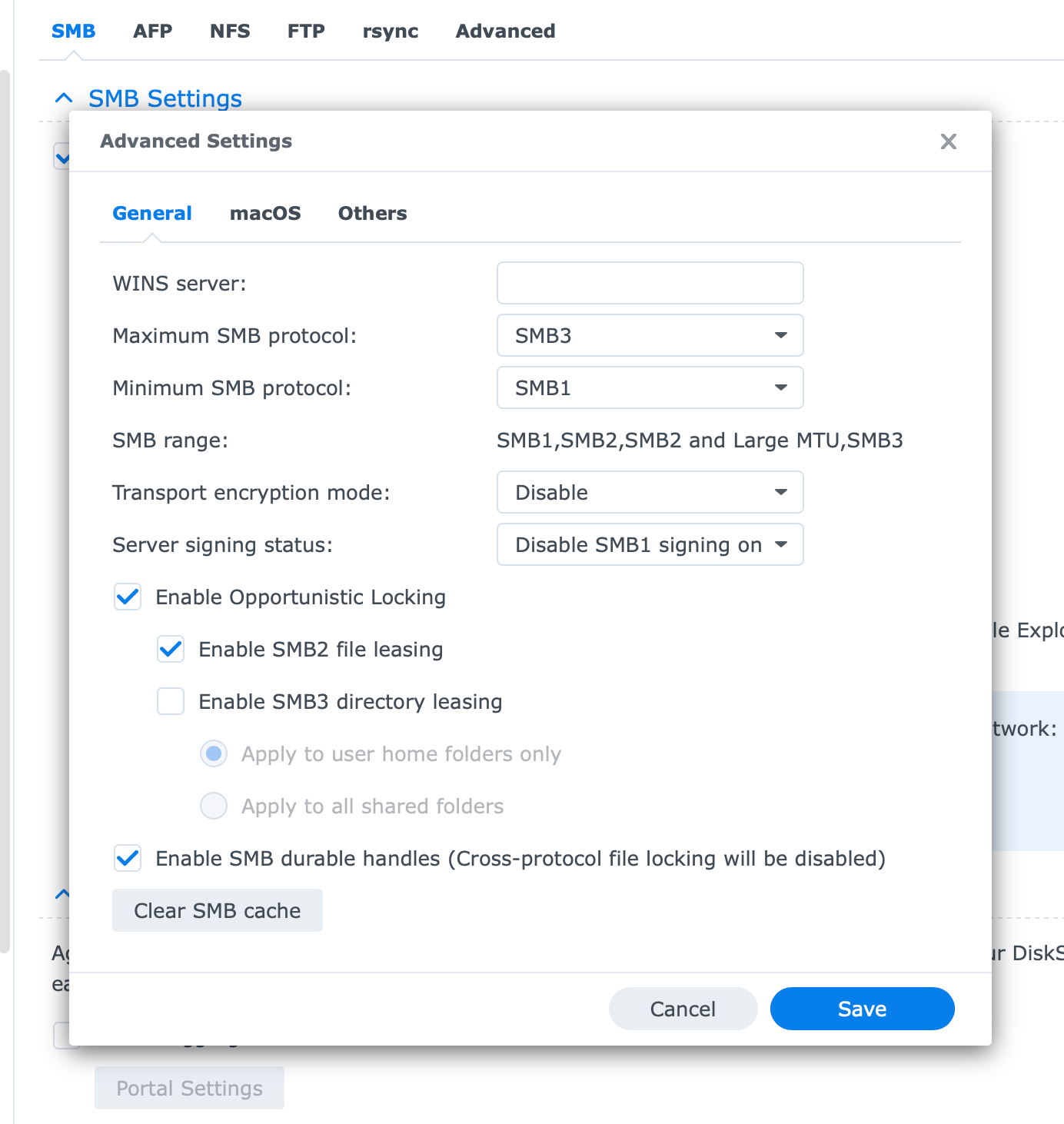
My Backup Backup Plan
Since I’m tired of Apple breaking Time Machine every few years and the lack of transparency around this (it’s not Synology’s fault), I have decided to implement a more robust solution that doesn’t depend on Synology’s SMB implementation.
I already have a Proxmox server with ZFS as the backend storage that has an LXC container running Samba for general file sharing, so I decided to look into that as a possible Time Machine target.
As it happens, mbentley/timemachine is a Docker image specifically designed for this purpose, and it seems to be well-maintained, so I’m testing it like this:
services:
  timemachine:
    image: mbentley/timemachine:smb
    container_name: timemachine
    restart: always
    network_mode: host
    environment:
      - TM_USERNAME=timemachine
      - TM_GROUPNAME=timemachine
      - PASSWORD=timemachine
      - TM_UID=65534 # 'nobody' user
      - TM_GID=65534 # 'nobody' group
      - SET_PERMISSIONS=false
      - VOLUME_SIZE_LIMIT=0
    volumes:
      # this is a pass-though mountpoint to the ZFS volume in Proxmox
      - /mnt/shares/timemachine:/opt/timemachine
    tmpfs:
      - /run/samba
Right now the first option seems to be working, but I will probably switch to the Docker solution in the near future, since it gives me more control over the SMB implementation and avoids relying on Synology’s software.
But if anyone from Apple is reading this: please, stop breaking Time Machine every few years. It’s a critical piece of infrastructure for many users, and the lack of communication around these changes is frustrating.
The Third Way: Borg Backup
I have been using Borg for some time now on Fedora, and I am considering using it for my Macs as well. Vorta seems decent, I just haven’t tried it yet.
A Minor, Yet Annoying, Additional Problem
Plus I’m annoyed enough that earlier this morning I tried to set up a new iOS device and the infamous Restore in Progress: An estimated 100 MB will be downloaded… bug (which has bitten me repeatedly over the last six years) is still there.
The usual fix was hitting Reset Network Settings and a full hardware reboot, plus reconnecting to Wi-Fi… But this time it took three attempts.
Come on, Apple, get your act together. Hire people who care about the OS experience, not just Liquid Glass.